


How to Optimize Your Homepage for AI Traffic
by Limor Barenholtz15 Min.
Aug 09, 2026
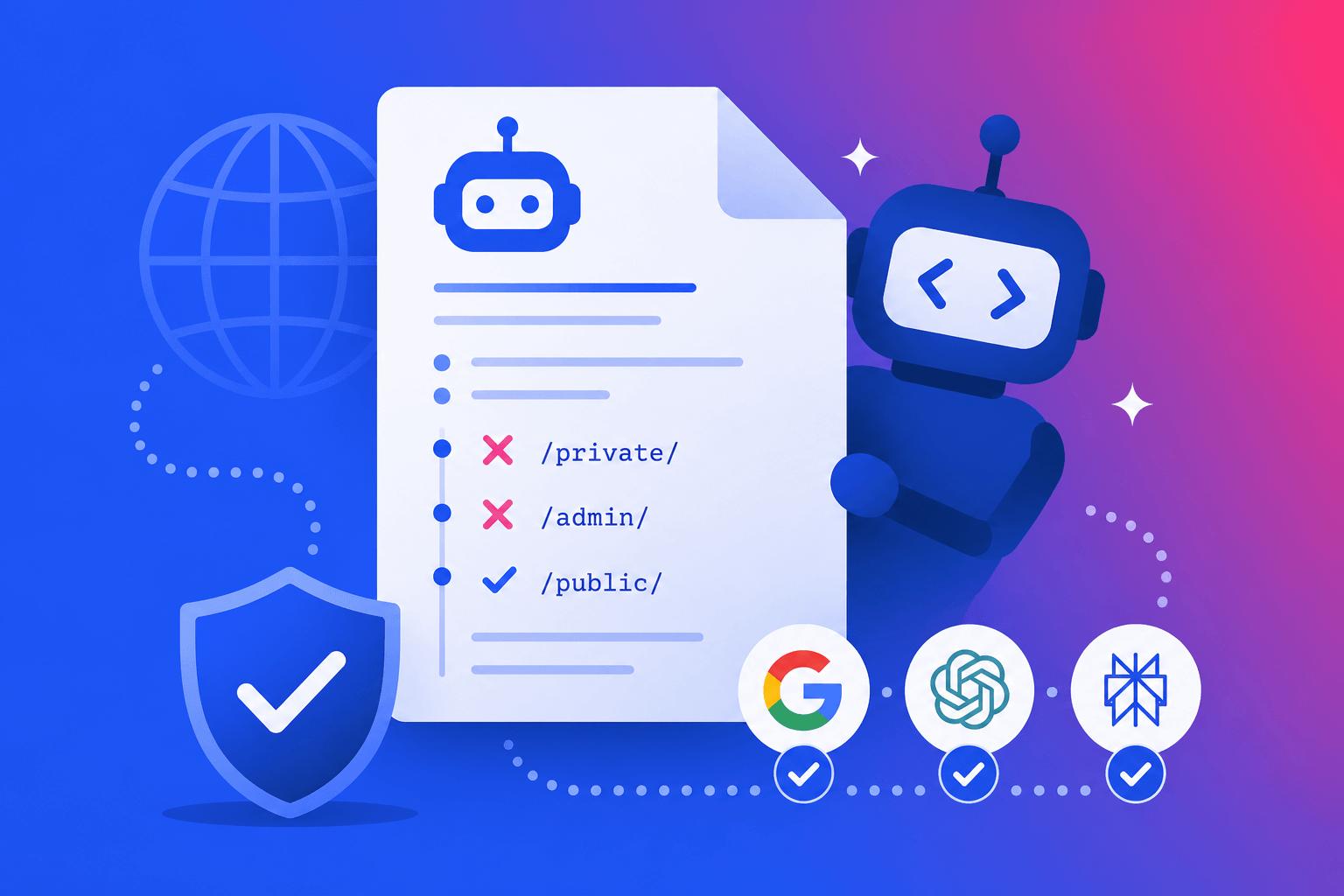
Robots.txt has always been a small file with big consequences. Configure it right, and search engines crawl your most important pages efficiently. Get it wrong, and critical content disappears from search results entirely.
But there’s a newer dimension to this conversation. Since 2023, a fleet of AI crawlers – GPTBot, ClaudeBot, PerplexityBot, and others – has joined the traditional search bots hitting your site. These bots follow the same robots.txt rules, and how you handle them is now a real business decision: some sites actively block them to protect proprietary content, while others make sure they’re not accidentally keeping these crawlers out.
In this guide, we’ll cover:
A robots.txt file, typically placed in a website’s root directory, instructs web crawlers which pages should be excluded from crawling. This file is useful for managing search engine access, controlling bandwidth usage, keeping admin or staging areas out of crawlers’ paths, and focusing search engine attention on the most important areas of the site.
The robots.txt file is part of a group of web standards called the Robots Exclusion Protocol (REP) that regulates how web bots crawl the web to index content.
An example of a robots.txt file
# Block all crawlers from private and restricted areas
User-agent: *
Disallow: /private/
Disallow: /restricted-page.html
Disallow: /images/
Allow: /images/public/
In this example:
/private/ (with trailing slash) blocks that directory and everything inside it. /restricted-page.html blocks a specific file./images/ directory is disallowed, but /images/public/ is explicitly permitted.Finding a site’s robots.txt file is simple. Type the URL for the homepage of any site and add /robots.txt to the end.
For example:
https://example.com/robots.txt
It can be fun (depending on who you ask) to peek in any website’s robots.txt file and look at what they are doing.
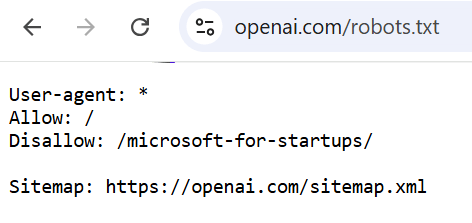
Some have it simple, here’s OpenAI’s robots.txt file:
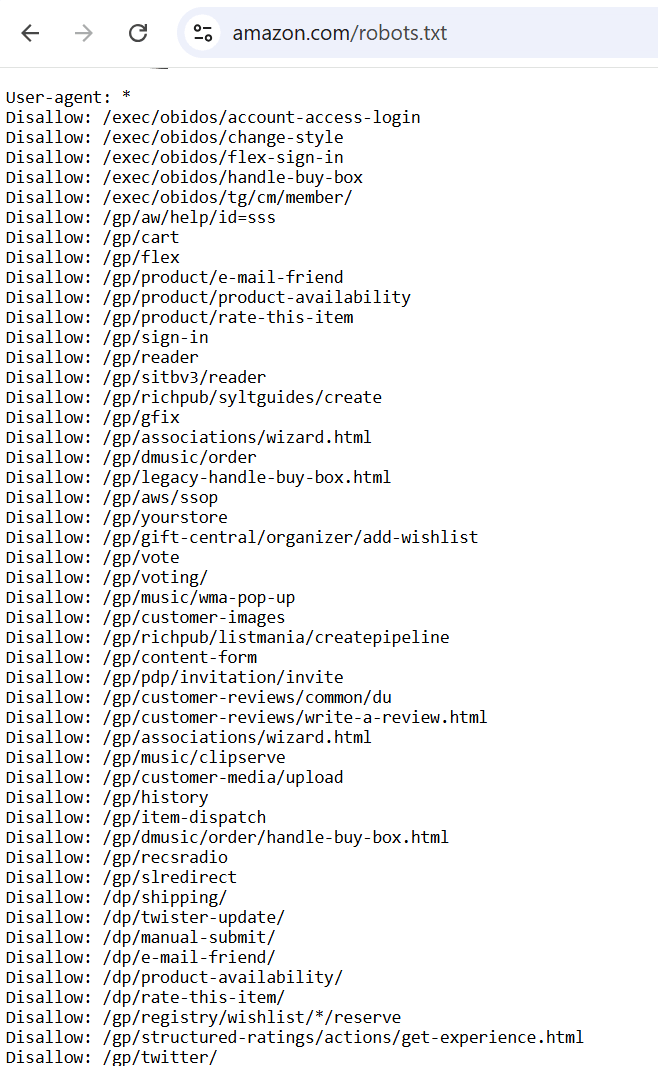
And some need it a mile long… see Amazon’s robots.txt file:
Your site might not need a robots.txt file at all. Without one, Google will crawl through your entire site – which is exactly what you want if you want everything indexed. You only need one if you want more control over what search engines crawl.
As part of a comprehensive site audit, reviewing your robots.txt is a useful checkpoint. Here are the main scenarios where one is genuinely useful:
Each website has a crawl budget. In a given time frame, Google will crawl a limited number of pages. If your site has more pages than the crawl budget covers, some content will never make it into Google’s index – and pages that aren’t indexed can’t rank.
One practical fix: stop search engine bots from crawling low-priority or non-essential content that doesn’t need frequent crawling, such as duplicate pages, archives, or dynamically generated content. This preserves crawl budget for the pages that matter.
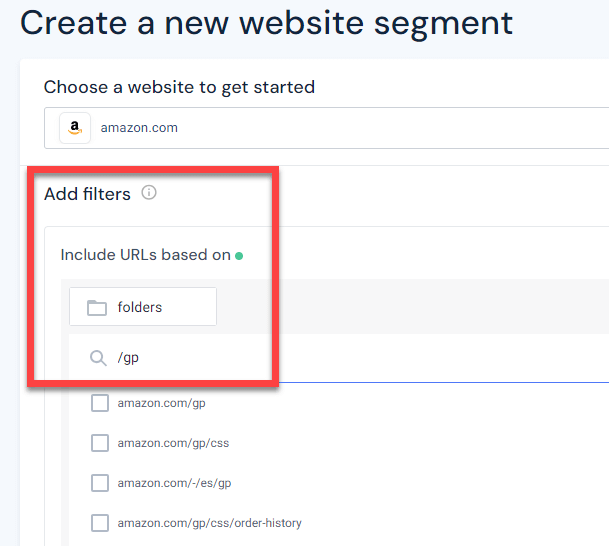
You can monitor which site sections are eating up crawl budget for any website using Similarweb’s Website Segments tool. Set up a segment that covers any section of your site – a subfolder, URL pattern, or specific pages – to track whether it’s getting organic traffic.
Below, we’re setting up a segment for the /gp/ subfolder on amazon.com. As you saw in the screenshot above, they actively block large chunks of URLs in this directory individually, not the entire folder:
Once your segment is set up, go to the Marketing Channels report and look at Organic Traffic. This shows you whether that segment is receiving organic visits and consuming crawl budget. Below, you can see the tracked segment is generating 399M visits over one year!
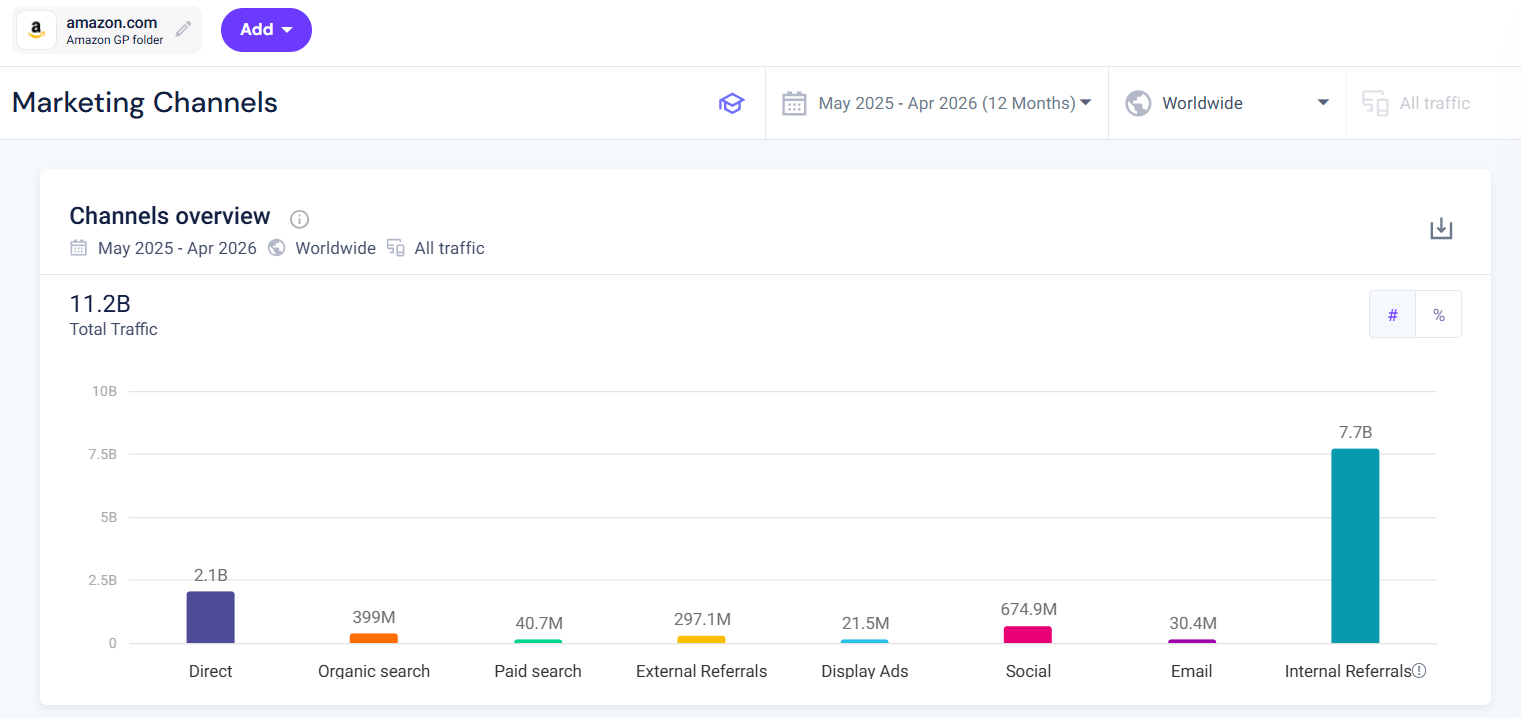
Now, Amazon knows what they are doing, and this folder has a lot of relevant pages for organic search, but just imagine how much “wasted” traffic and crawl budget they would experience if they had not blocked a lot of subfolders under that /gp/ folder.
For many sites – particularly ecommerce – duplicate content is unavoidable. Multiple product pages that could rank for the same keyword, for instance. Robots.txt is one way to limit which versions get crawled.
The Allow: directive lets you explicitly permit search engines to crawl specific high-priority content, even when a broader Disallow rule is in place.
If your site has admin panels, staging environments, or test areas, a Disallow: directive keeps search engines out of those sections.
Robots.txt files tell search engine bots which pages to skip and which to prioritize. To understand this fully, it helps to know how bots discover and process content in the first place.
Search engine bots start by visiting a list of known web pages, then follow links from one page to another across the web – a process called crawling. Once a page is crawled, the information is parsed and stored in the search engine’s index. That index is what powers search results when a user submits a query.
When a bot arrives at a site, it checks for a robots.txt file first. If the file is present, the bot reads it for instructions. If there’s no robots.txt, or it contains no relevant directives, the bot proceeds to crawl freely.
The robots.txt file specifies the user agent and includes directives like Allow: and Disallow:.
# Block specific directories, allow one explicitly
User-agent: *
Disallow: /private/
Allow: /public/
Disallow: /restricted/
One important nuance: robots.txt directives are instructions that search engine bots will generally follow, but they’re not a guarantee. If external links point to a page that’s disallowed, Google may still crawl that page and include it in its index.
To prevent a page from appearing in search results entirely, use a noindex meta tag in the <head> section of the page’s HTML:
<meta name="robots" content="noindex">
A robots.txt file gives instructions through directives – commands that tell a bot how to behave. Each directive block begins by specifying the user agent, then sets the rules for that agent.
You can also add comments anywhere in the file using a # at the start of a line. Crawlers ignore these – they’re purely for human readability:
# Block admin area from all crawlers
User-agent: *
Disallow: /admin/
Disallow: Prevents crawlers from accessing specified paths. You can:
1. Block everything for all user agents (used when you want to prevent all crawling entirely, or during a site migration):
User-agent: *
Disallow: /
2. Block a specific directory for all user agents. Note the trailing slash – Disallow: /private/ blocks the directory and all its contents. Without the slash, Disallow: /private is a prefix match that would also block unrelated paths like /privacy-policy:
User-agent: *
Disallow: /private/
3. Block all PDF files across the site. Path-based wildcards must start with /:
User-agent: *
Disallow: /*.pdf
4. Block different bots with different rules in the same file. Each group applies to the first user-agent that matches – a bot will only follow one group:
# Block Googlebot from the staging area
User-agent: Googlebot
Disallow: /staging/
# Allow all other crawlers to access the full site
User-agent: *
Allow: /
A note on empty Disallow: Disallow: with no path value means “allow everything” – the directive is effectively ignored. This is technically valid, but easy to confuse with Disallow: / (which blocks everything). Always include an explicit path.
Allow: Overrides a Disallow rule for a specific path. Below, all crawlers are blocked from /private/ except one subdirectory:
User-agent: *
Disallow: /private/
Allow: /private/press-releases/
A common real-world use is allowing Googlebot to access CSS and JavaScript files that a broader rule might otherwise block – these are needed for proper page rendering:
# Block all crawlers from includes folder
User-agent: *
Disallow: /includes/
# But let Googlebot in so it can render pages correctly
User-agent: Googlebot
Allow: /includes/
Sitemap: Specifies the location of your XML sitemap, helping search engines understand your site’s structure. You can list multiple sitemaps:
Sitemap: https://www.example.com/sitemap.xml
Sitemap: https://www.example.com/sitemap-blog.xml
In 2019, Google confirmed that crawl-delay, nofollow, and noindex are not supported in robots.txt files. If you include them, they simply won’t work.
For controlling indexing, use the meta noindex tag or the X-Robots-Tag HTTP header instead. For controlling crawl rate, Google deprecated its Search Console crawl rate limiter tool in January 2024. The current recommended approach is to use server response codes (such as 429 or 503) to signal to Googlebot that it should slow down.
Two wildcards are available in path rules:
Block all URLs ending in .pdf (the $ means nothing after .pdf is allowed):
User-agent: *
Disallow: /*.pdf$
Block all URLs containing /search? (query parameters on a search results page):
User-agent: *
Disallow: /search?*
Block a URL pattern – for example, all dynamically generated product filter pages that follow a predictable pattern:
User-agent: *
Disallow: /products/*?color=
If your site doesn’t have a robots.txt file, create one in a plain text editor. Insert your directives, save the file as robots.txt, and upload it to your website’s root directory – so it’s accessible at https://www.yourdomain.com/robots.txt.
To test whether your robots.txt is working correctly, use the robots.txt report in Google Search Console (Settings > robots.txt). To check whether a specific URL is being blocked, use the URL Inspection tool.
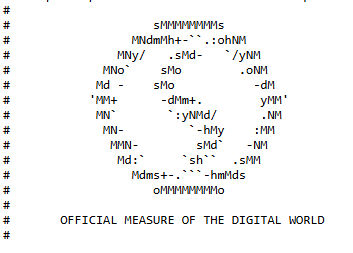
Since everything after a # is a comment, you can technically put anything in your robots.txt that a comment can hold – including ASCII art. Some teams use this to add a bit of personality to what is otherwise a fairly dry configuration file. We do it ourselves: if you visit similarweb.com/robots.txt, you’ll find our logo sitting quietly in the comments, followed by “OFFICIAL MEASURE OF THE DIGITAL WORLD.” Crawlers ignore it entirely. Humans who go looking, however, might appreciate the effort.
Not a ranking factor. But not nothing, either.
The easiest way to create or edit a robots.txt file in WordPress is via an SEO plugin:
One practical note: several popular WordPress SEO plugins – including Yoast Premium and AIOSEO – have added dedicated “block AI crawlers” features in recent updates. These are typically opt-in toggles, but they often block all AI bots in a single click without distinguishing between training crawlers and retrieval bots. If you’ve recently enabled such a setting, it’s worth reviewing which user agents are actually being blocked and whether that aligns with your intent.
Traditional search bots like Googlebot and Bingbot have been the main audience for robots.txt rules for decades. In 2023, that changed. AI companies began releasing their own web crawlers – and they honor robots.txt the same way search bots do.
The most common ones you’ll encounter are:
Understanding this distinction matters for how you configure your file. Training crawlers (GPTBot, ClaudeBot, Google-Extended, CCBot) collect your content to build or improve AI models. Search and retrieval crawlers (OAI-SearchBot, Claude-SearchBot, PerplexityBot) fetch your content in real time to answer a user’s question – and typically surface a link or citation back to your site.
These are independent systems. You can block a training crawler without affecting a retrieval crawler from the same company, and vice versa.
A significant number of publishers have chosen to block training crawlers, particularly GPTBot. Major news organizations, including The New York Times, CNN, Reuters, The Guardian, The Washington Post, and Bloomberg, have added GPTBot blocks to their robots.txt files. Their concern: content produced at high cost is being absorbed into AI models that then answer user questions without attribution or a link back to the source.
Blocking a training crawler is straightforward:
User-agent: GPTBot
Disallow: /
User-agent: ClaudeBot
Disallow: /
User-agent: Google-Extended
Disallow: /
User-agent: CCBot
Disallow: /
This blocks bulk training data collection while leaving all other crawlers – including Googlebot, Bingbot, and the retrieval bots – unaffected.
The other side of this decision is AI visibility. If a retrieval crawler like OAI-SearchBot or PerplexityBot is blocked, your content won’t appear in ChatGPT or Perplexity answers, regardless of how well it ranks in Google. For brands investing in AI search optimization, being crawlable by these bots is essential.
A balanced configuration blocks training crawlers while explicitly allowing retrieval bots:
# Block training crawlers
User-agent: GPTBot
Disallow: /
User-agent: ClaudeBot
Disallow: /
User-agent: Google-Extended
Disallow: /
User-agent: CCBot
Disallow: /
# Allow real-time retrieval and citation bots
User-agent: OAI-SearchBot
Allow: /
User-agent: Claude-SearchBot
Allow: /
User-agent: PerplexityBot
Allow: /
# Allow all other crawlers (including Googlebot)
User-agent: *
Allow: /
There’s no universally right answer here. The decision depends on your content strategy, your concerns about training data use, and how much weight you place on AI citation visibility. What matters is making the choice deliberately rather than leaving it to plugin defaults or outdated configurations.
Robots.txt controls crawler access at the infrastructure level – it tells bots where they can and can’t go. A newer companion file, LLMS.txt, takes a different approach: it’s a structured document placed at your site’s root that tells AI systems what your site is about and how to use your content appropriately. Where robots.txt manages access, LLMS.txt manages understanding. For a full breakdown of what it is and whether your site should have one, see our guide to LLMS.txt.
On the lighter end of this space, there’s also cats.txt – a community-driven standard that follows the same idea, placing a Markdown file at /.well-known/cats.txt to help AI systems better understand and reference your site’s content. It’s somewhat playful by design (yes, it requires at least one cat image), but it reflects a genuine trend: site owners experimenting with structured files that speak directly to LLMs rather than traditional crawlers.
Robots.txt is a small file, but the consequences of errors are large. Here are the most common problems to watch for:
/Private/ and /private/ are different paths.A well-configured robots.txt file is one of those things you set up carefully, test, and then largely leave alone – unless you’re doing a major site restructure, updating your stance on AI crawlers, or installing a new SEO plugin that might change your settings without you noticing.
The fundamentals haven’t changed: control crawl budget, protect non-essential areas, keep the syntax clean. What has changed is the audience. Your robots.txt now speaks to a much wider range of bots than it did two years ago, and being deliberate about what each one can and can’t access is increasingly part of good technical SEO practice.
Do all bots respect robots.txt?
Reputable crawlers from Google, Bing, OpenAI, Anthropic, and Perplexity treat robots.txt as binding. However, robots.txt is a voluntary standard with no technical enforcement mechanism – a bot can read your file and ignore it entirely. Malicious scrapers and some aggressive AI crawlers have been documented doing exactly this. For bots, you need to actually stop rather than just instruct, server-level blocking (via a WAF, CDN rules, or IP blocking) is more reliable than robots.txt alone.
Can robots.txt hurt my SEO?
Yes, if misconfigured. The most common mistake is accidentally blocking pages you want indexed – for example, using Disallow: / during a site migration and forgetting to revert it, or blocking CSS and JavaScript files that search engines need to render your pages correctly. Robots.txt errors can also prevent Google from seeing your noindex tags, since the crawler has to be able to access a page before it can read its meta directives. Always validate your file in Google Search Console after making changes.
Does robots.txt prevent pages from appearing in Google search results?
Not directly. Robots.txt controls whether a page is crawled, not whether it’s indexed. A page can still appear in search results if Google discovers it via external links, even if the robots.txt file disallows crawling. To prevent indexing, use a noindex meta tag on the page itself.
Does blocking AI crawlers in robots.txt affect my Google rankings?
Blocking AI training crawlers like GPTBot or Google-Extended has no impact on your Google Search rankings – these are separate systems from Googlebot. However, blocking retrieval bots like OAI-SearchBot or PerplexityBot can reduce your visibility in AI-generated answers and citations.
Should I block AI crawlers in my robots.txt?
It depends on your goals. Blocking training crawlers (GPTBot, ClaudeBot, Google-Extended) protects your content from being used to train AI models without attribution. Allowing retrieval crawlers (OAI-SearchBot, Claude-SearchBot, PerplexityBot) keeps your content eligible to appear in AI answers. The two types of bots are independent – you can block one category without affecting the other.
When should you use a robots.txt file?
Use robots.txt when you want to prevent search engines from crawling specific sections of your site – such as admin areas, duplicate content, or staging environments – or when you want to manage how AI crawlers interact with your content. If you want your entire site crawled and indexed, you don’t need one.
Senior SEO Specialist
Shai, with 10+ years in SEO, holds a Bachelor’s and an MBA. He enjoys TV shows, anime, movies, music, and cooking.
How to Optimize Your Homepage for AI Traffic

Is AI Replacing Search? What The 2026 Numbers Actually Reveal

ChatGPT vs Claude vs Gemini vs Perplexity: what 2026 usage data actually shows
Give it a try or talk to our insights team — don’t worry, it’s free!